Building a Binary Keyboard
During COVID, I decided I wanted to use the (plenty of) free time I had learning new skills. In fact it was during this time I learned a lot about cybersecurity. The main thing I wanted to do, though, was to build my own mechanical keyboard.
I did the research, I knew the parts I needed, I knew how everything went together. The thing I didn’t know how to do was actually put the parts together
- I had never soldered before in my life. This was fixed by buying some little kits (I remember the first thing I soldered was a light-up Christmas tree) and just like that a new hobby was picked up.
It was at this point that my newfound interests in making and keyboards, and my longtime interest in the weird and wacky, led me to discover Alice Averlong - also known as Foone. If you don’t know, Foone describes herself as a “hardware/software necromancer”. She has done a lot of really cool projects but what spoke to me was her terrible keyboards. One look was all it took and I knew I wanted to make my own Terrible Keyboard.
Foone had already made a binary keyboard but that didn’t stop me from wanting to make my very own. Much like when I took up soldering, I didn’t have all the skills needed to complete this project, however I knew I needed to:
- Find a microcontroller I could run the project off.
- Design and create a Printed Circuit Board (PCB).
- Write the code to translate user inputs into the keyboard to keyboard presses on the computer.
That’s only three things! Three things is not a lot of things. This will be easy.
Finding a Microcontroller:
Foone often used the Teensy 4 for her projects. If it works for her it’ll work for me.
No, really. This was about as much thought as went into it I believe. I knew the Teensy was predominantly written in C, which is a langue I didn’t (and still don’t) know well, but I figured it would be a good excuse to practice.
Designing the PCB:
I had never designed a PCB before so first I had to find out how exactly one goes about doing that. I found JLC1 who had a tool I could download to get design my very own circuit board.
In front of me I had a square, and I could load in presets people had made before for parts like the Teensy and for keyboard switches. I placed the microcontroller at the top, then placed down some keyboard switches and resized the square to better fit the project. This was all incredibly intuitive, even for someone who had never designed a circuit board before.
Next I had to run the traces inside the board. I figured it would work as any other circuit - with one side connected to ground. They are called ‘keyboard switches’ for a reason, that being that when pushed they complete a circuit. All I’d have to do is watch for which circuits have been completed and I would know what key was pushed. I connected one terminal of each of the switches to the GND pin of the Teensy, then the other pin to one microcontroller pin each.
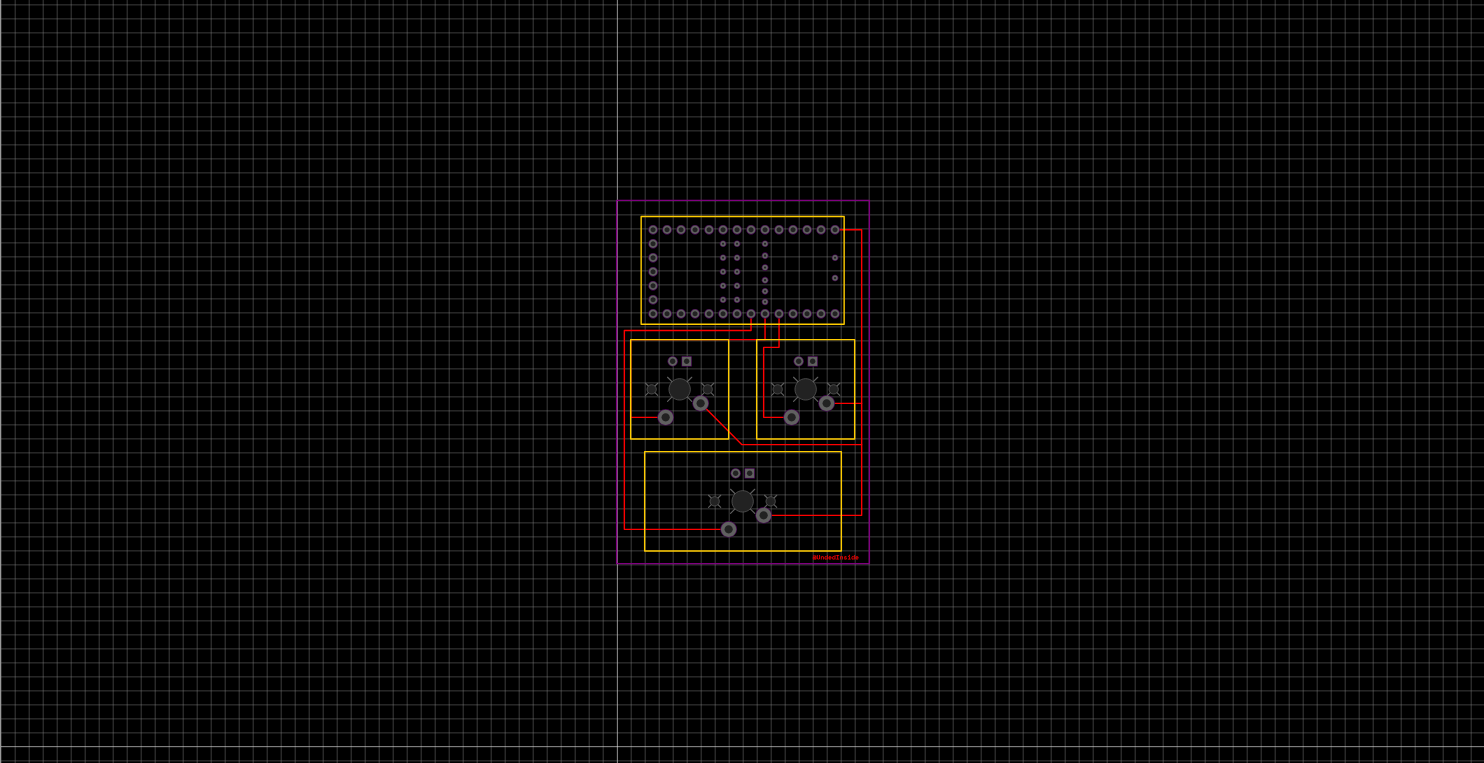 The design of the circuit board
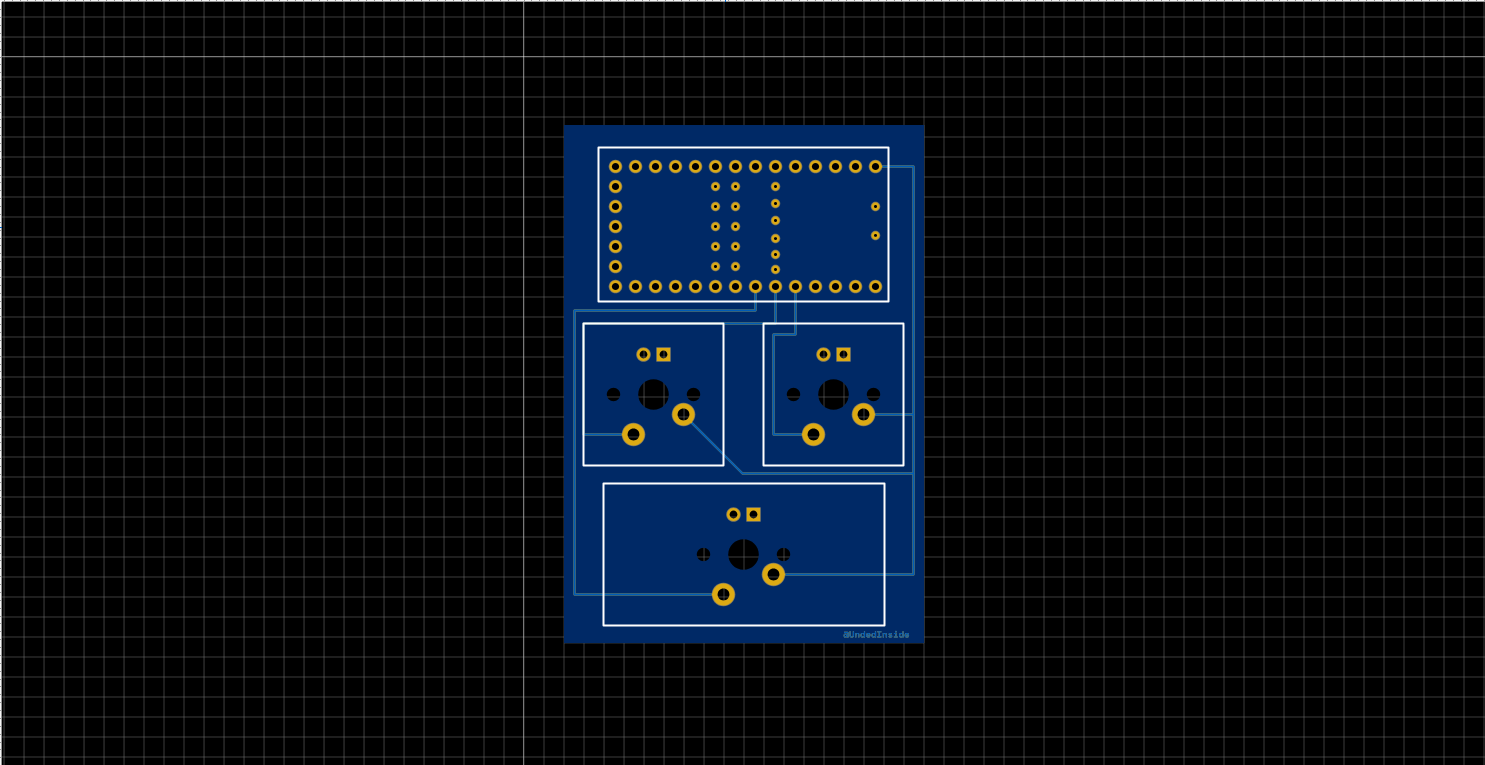 What it should actually look like
After a nerve-wracking two and a half week wait my boards arrived!
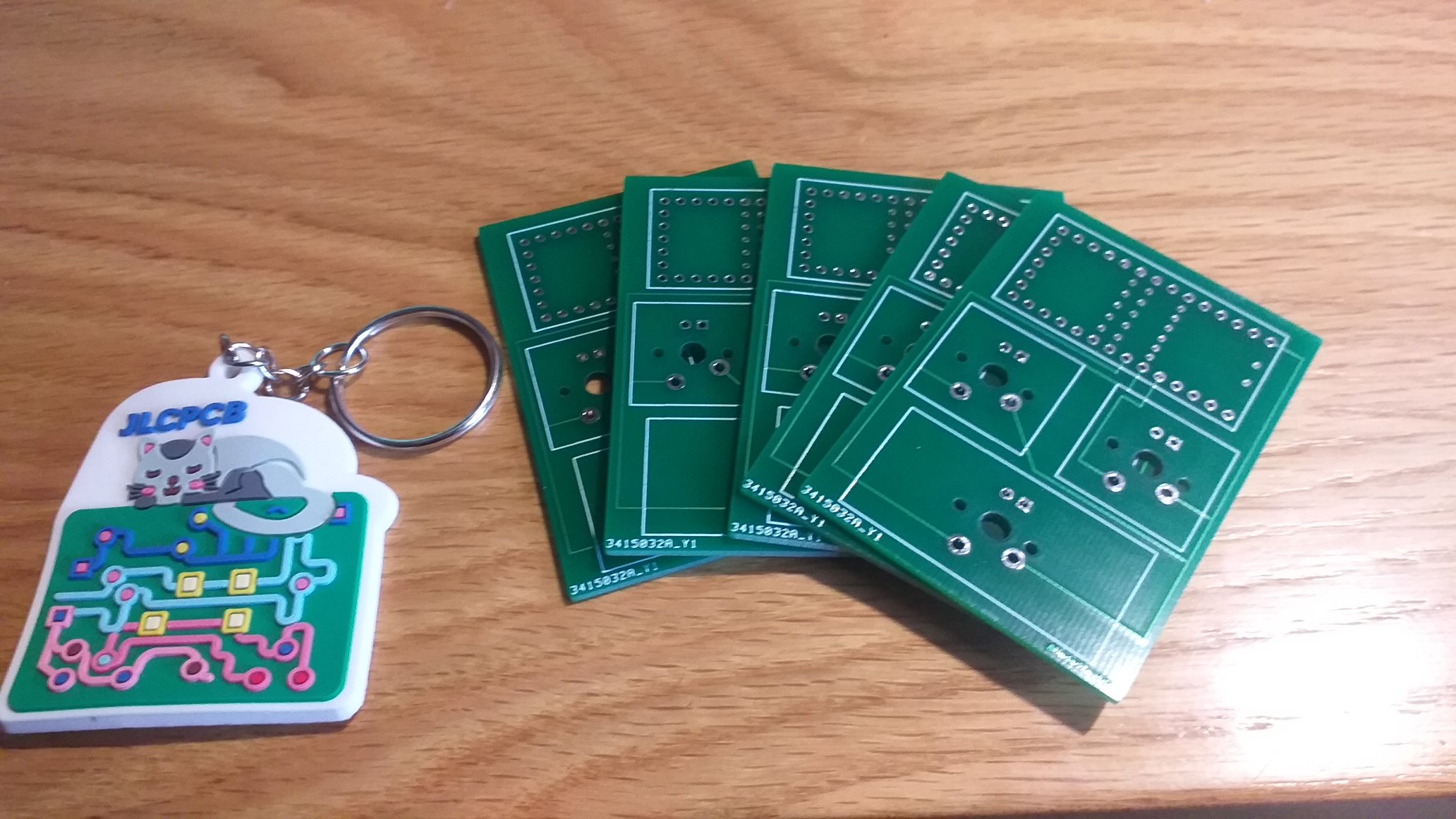
Look at that beautiful green (and JLC threw in a free keychain that still hangs proudly from my bag to this day.) Eagle-eyed readers might wonder what’s with the third key. Binary, as hinted by the name, only has two states (1 and 0, or ‘on’ and ‘off’) but the reason for this is simple: I overlooked it. I thought there would be a use for it when designing the circuit board and didn’t realise until later that it wasn’t necessary. No matter. With the boards arrived, all that was left was the coding.
Testing the Boards:
This was the ultimate test now. I had designed the circuit board but without any code I couldn’t tell if they were actually going to work or not.
I found a library called Bounce.h which saved a lot of work of tracking
keypresses. I initialised the pins in the code, pulled them up, set them to
type some test message when pressed, and they worked. That meant my circuit
boards worked as well!
Writing the Firmware:
I’ll skip over a lot of the process of writing the code. It was a lot of trial and error, and to be honest I don’t remember much of it these days. Instead, I’ll run down how the code works.
First things first we initialise the keys with Bounce. This sets them up as
keyboard keys. We also define three variables: count to keep track of the
number of keypresses, byteValue to keep a count of the current value of the
byte, and bitValue which will keep count of the value of the current ‘bit’
the user is entering.
setup()
Here is where we set up the pins on the Teensy - pulling up the ones connected to the keyboard switches. I also set up the built-in LED on the Teensy to flash the morse sequence of ‘OK’ to let me know the keyboard is ready, before going on to the main loop.
loop()
This is where the magic happens.
First, we update the states of all the keys we set up with Bounce. Then we check to see if any of them have been pressed.
If 0 has been pressed, we increment count and divide bitValue by 2. This
is to ‘move on’ to the next bit of the byte.
If 1 has been pressed, we increment count, add the value of the current bit
to byteValue, and then divide bitValue by 2.
I also found a use for the third key. This one would act as a ‘clear’ key. If you realised you mistyped the byte you can simply clear it and start again.
We repeat this loop until count is 8. This means the user has entered a full
byte. Now we convert the value of byteValue to ASCII and send that as a
keypress before resetting all the variables to start the loop again.
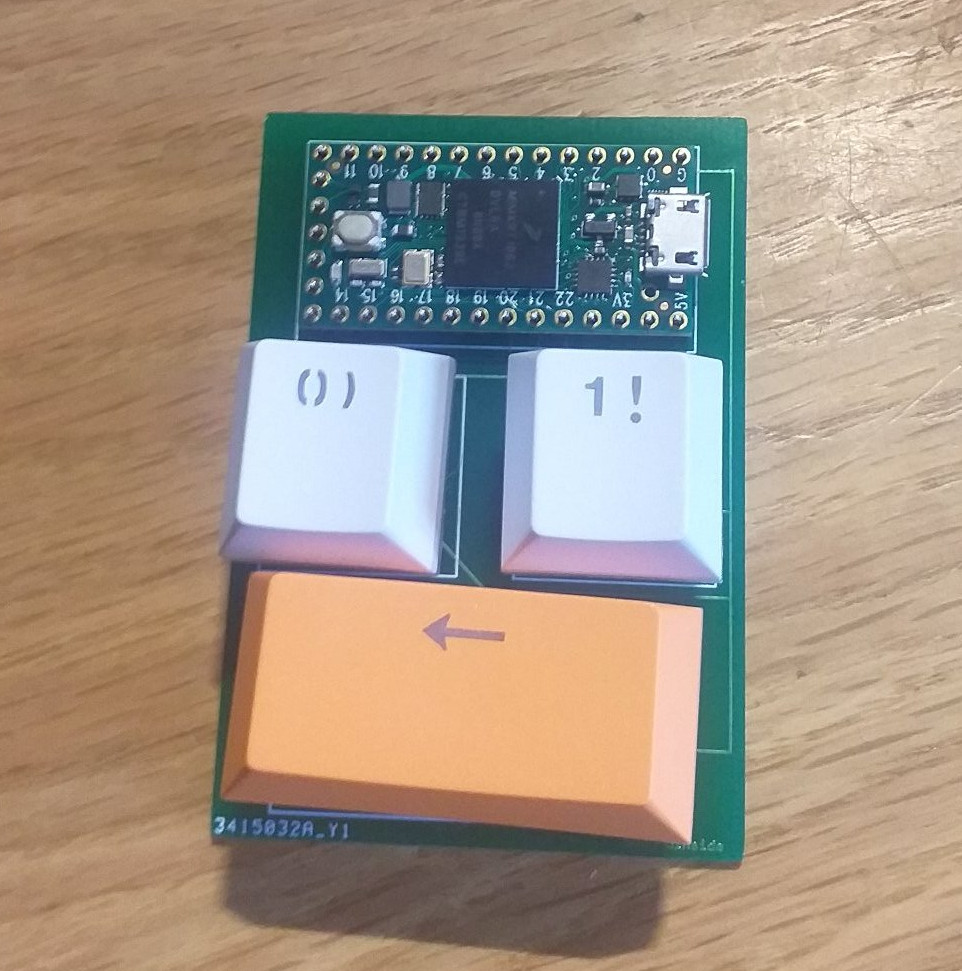
There we have it!
This was a pretty fun project, and I learned a lot - from circuit board design, to C coding, to double checking that I actually need everything I’m adding to the project.
There are certainly things I would change (which maybe will come in a v2. For a start, I can get rid of that blasted third key. Secondly, the preset for the keyboard switches I used had holes for LEDs. You can solder them on to the PCB but there are no traces to power them. I would change this (either remove the holes or actually add LED underglow. Thirdly, I would use board-mount swtiches. As it is, the keys look a little wonky.
To prove the viability of this keyboard, I’m going to sign off this post using it:
Happy hacking!
-
I’m not sponsored in any way by JLC. I simply like their service a lot. If JLC would like to sponsor me, my email address is at the bottom of the page. ↩